
Gmail AI Inbox: A Business Guide to Suggested To-Dos
Gmail AI Inbox turns buried email threads into suggested to-dos and short topic summaries. This business guide shows how to use it safely, with a verify-before-you-commit habit that keeps every extracted task trustworthy.
The Short Answer
Every business owner knows the feeling. You open Gmail after a day of meetings, scan a wall of unread messages, and still close the tab unsure what you actually promised anyone. Gmail AI Inbox is Google's attempt to fix exactly that problem. Instead of asking you to read every thread, it pulls out the work…
Every business owner knows the feeling. You open Gmail after a day of meetings, scan a wall of unread messages, and still close the tab unsure what you actually promised anyone. Gmail AI Inbox is Google's attempt to fix exactly that problem. Instead of asking you to read every thread, it pulls out the work buried inside your mail and shows it as suggested to-dos and short topic summaries. This guide explains what it does, what it does not do, and how to run a simple verify-before-you-commit habit around it so a helpful summary never becomes a missed deadline.
One important note before we go further. At launch, Gmail AI Inbox is rolling out to paid Google Workspace users in the US, with their language set to EN-US. It is not yet presented as available to everyone, and there is no announced date for wider regions.
What Gmail AI Inbox Actually Does for a Business Inbox
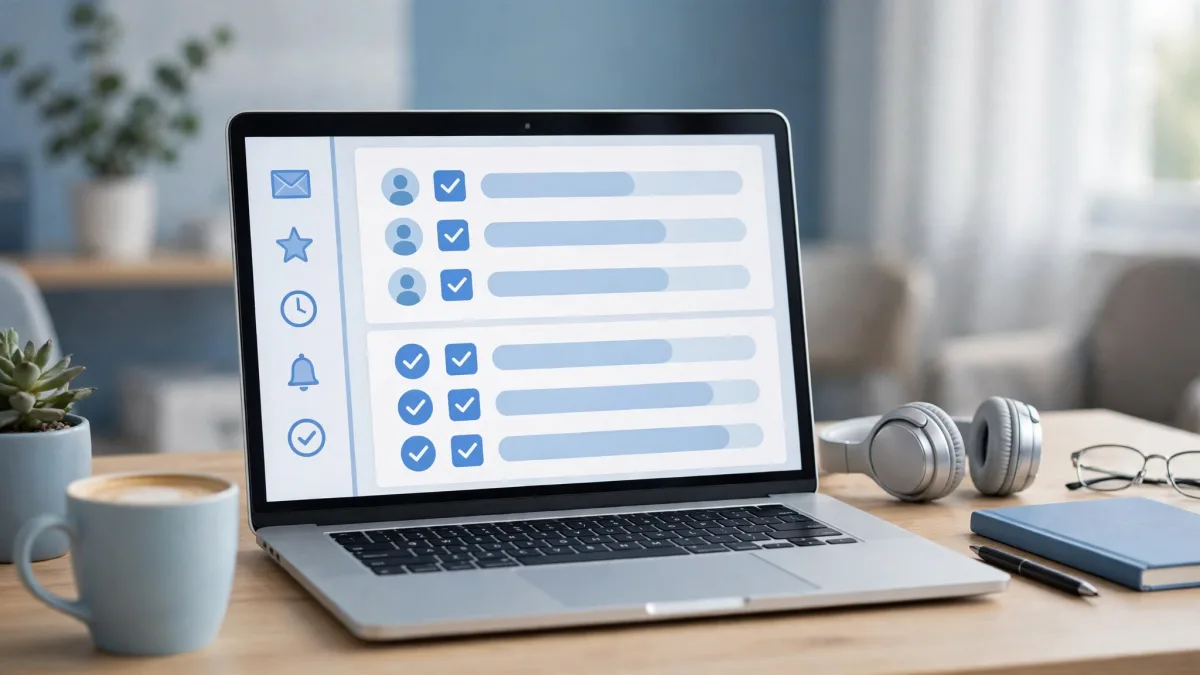
Gmail AI Inbox is a separate view inside Gmail, not a replacement for your inbox. Eligible users open it from the Gmail desktop client or from the menu in the mobile app. Once inside, you see two sections that do two different jobs.
Suggested to-dos automatically extracts action items, deliverables, and deadlines embedded within email conversations. The client who buried a request for revised artwork in paragraph four of a long email, the supplier who mentioned a Friday delivery date in a reply chain, the colleague who asked you to confirm a booking: those commitments surface as to-dos without manual note-taking or scanning through dense threads.
Topics to catch up on delivers context-rich summaries of your most important topics across multi-message threads and rapid back-and-forth discussions. Instead of re-reading twenty messages to find out what changed, you read a short summary of the latest key decisions and status changes, then open the original thread only when you need the detail.
How Gmail AI Inbox Changes Task Capture
Before tools like this, task capture depended on human memory at the worst possible moment: right after reading an email, while three more were arriving. The usual process was to copy a task into a separate to-do app, a notes document, or a chat message to yourself, and hope the copy stayed accurate. Every copy was a chance to lose the deadline, misspell the deliverable, or forget who owned the task.
Gmail AI Inbox removes that copying step. The to-do is extracted from the thread itself, so it stays linked to its source. You can check the wording, see who asked for what, and follow the conversation back to the original message. For a small team, that link matters more than the automation itself. It turns "someone said we owe something" into "this thread, this person, this date."
This fits naturally into wider business process automation. Automation should remove the repetitive copying and sorting work that adds no judgement, while leaving the judgement calls to people. An AI inbox that drafts your task list is a good example: it does the sorting, and your team still decides what gets committed to, in what order, and by whom. Our complete guide to business process automation walks through the same principle across invoicing, onboarding, and customer follow-up.
Suggested To-Dos in Practice: A Morning Routine That Works
Imagine a typical Monday for a services business. Overnight, a client approved a revised quote with one condition, a designer sent final files with a note about a print deadline, and a supplier changed a delivery window. In the new workflow, you open AI Inbox first and get a short list: confirm the quote condition, send the final files to print, and update the client about the new delivery window.
A practical routine looks like this:
- Open AI Inbox before your main inbox, and read the suggested to-dos as a draft, not a verdict.
- For each to-do, click through to the source thread and confirm three things: the exact deliverable, the real deadline, and the owner.
- Move confirmed to-dos into your team's real system of record, whether that is a task board, a CRM, or a shared document.
- Clear or dismiss anything that is already done, duplicated, or based on an outdated message in the thread.
- Only then open your main inbox for everything else.
Topics to Catch Up On: Decisions Without Re-Reading Every Thread
Long threads are where business context goes to hide. A project discussion can run for weeks, change direction twice, and end with a decision that contradicts the first message. Anyone joining late, or returning after leave, faces an unpleasant choice: read everything, or guess.
Topics to catch up on is built for that moment. It summarises the thread into the decisions and status changes that matter now, so you can join a conversation informed rather than confused.
The Trust Rule: An Extracted To-Do Is Only as Trustworthy as Its Thread
Here is the insight every team should adopt before switching this feature on: an extracted to-do inherits every flaw in the thread it came from. If the thread contains a superseded deadline, a corrected figure, or a request that was later withdrawn, the extracted to-do can faithfully repeat the wrong version. The AI is not lying. It is summarising a messy human conversation, and messy conversations contain outdated information.
That is why the verify-before-you-commit habit is non-negotiable. Before you promise a client a date, confirm it in the thread. Before you assign work to a team member, check that the request was not reassigned later in the same conversation. Before you mark something complete, check whether a later message added a new condition.
There is one specific trap to teach your team. In Topics to catch up on, choosing "Mark all as read" acknowledges the unread updates in AI Inbox, and it also changes all affected emails to read in your Gmail inbox. That is risky when you have only skimmed a summary. A message marked read looks handled, even if nobody acted on it. Make it a team rule: mark all as read only after the to-dos from those topics have been confirmed and moved into your task system. Never use it as a shortcut for "I will deal with this later," because Gmail will no longer show it as unread.
What Still Needs a Human
- Verifying deadlines: Check the date against the latest message in the thread, not just the extracted summary.
- Confirming ownership: Make sure the to-do names the right owner. A task addressed to "the team" belongs to nobody until someone claims it.
- Spotting what is missing: According to Google's help documentation as reported at launch, AI Inbox does not support attachments, delegated inboxes, or encrypted emails. If a deliverable lives in an attachment or a shared mailbox, it may not appear at all.
- Judging priority: Urgency in an email thread is not the same as business priority. A loud client thread can crowd out quiet but important work.
- Handling sensitive work: Review whether AI-assisted features fit your policies for confidential client or project information before relying on them for sensitive workflows.
Rollout Reality: Who Gets Gmail AI Inbox, and When
Google announced the Workspace expansion on October 15, 2026, in its Workspace Updates blog. The rollout is gradual, not instant, and it follows two release tracks:
| Release track | Rollout start | Visibility window |
|---|---|---|
| Rapid Release domains | October 12, 2026 | Up to 15 days |
| Scheduled Release domains | October 26, 2026 | Up to 15 days |
At launch, the tiers receiving it first are Business Standard and Business Plus, Enterprise Standard and Enterprise Plus, and Frontline Plus. Business Starter, Enterprise Starter, and AI Pro for Education are scheduled to follow in the coming months. Do not treat this as a fixed, final list: Google has described the Starter and Education timing in general terms, and details can change as the rollout proceeds.
Two limits apply at launch regardless of tier. First, availability is limited to users in the US with EN-US as their language. Second, there is no admin control for this feature: administrators cannot turn it on or off in the Admin console. Individual users can hide it for themselves through Gmail Settings, on the Inbox tab, by unchecking "Show AI Inbox." Hiding the view is personal, not organisation-wide.
One setup detail: smart features in Google Workspace and in other Google products need to be on, and after turning them on it can take up to 7 days for a first set of to-dos and topics to appear.
What to Do When It Has Not Arrived Yet
If a colleague has AI Inbox and you do not, do not assume your account is faulty. Rollouts reach accounts at different times inside the same window. Work through this checklist before raising a support ticket:
- Check your release track. Ask your Workspace admin whether your domain is on Rapid Release or Scheduled Release, and count up to 15 days from that track's start date.
- Check your language setting. At launch, the feature requires EN-US. A different language setting is a common reason for absence.
- Check your region and tier against the launch list above. If you are on a Starter or Education edition, the coming months timeline applies.
- Check your smart features settings, and allow time after turning them on for to-dos and topics to appear.
- Check the right place. Eligible users find AI Inbox in the Gmail desktop client or the mobile app menu, not in a separate app.
- Check whether you hid it earlier. Open Gmail Settings, go to the Inbox tab, and confirm "Show AI Inbox" is checked.
Building a Simple Team Habit Around Gmail AI Inbox
- Morning check, ten minutes: Open AI Inbox first, confirm each to-do against its thread, and move confirmed items into your task system.
- One owner per to-do: No task stays assigned to "the team." Someone's name goes on it the same day it appears.
- Summary is not approval: No client commitment is made from a topic summary alone. The deciding message gets read first.
- Mark read means handled: Use "Mark all as read" only after the underlying to-dos are confirmed and captured elsewhere.
- Weekly tidy: Once a week, clear stale or duplicate suggestions so next Monday's list starts clean.
This habit is also the inbox-level version of a wider governance discipline. Our article on governing AI agent sprawl covers that question in detail, and teams ready to route confirmed tasks automatically can start with no-code and low-code AI automation workflows for follow-ups without hiring developers.
Frequently Asked Questions
What is Gmail AI Inbox?
Gmail AI Inbox is a view inside Gmail that surfaces suggested to-dos extracted from email conversations and summaries of topics to catch up on across long threads. It helps users see action items, deliverables, deadlines, decisions, and status changes without reading every message first.
Who can use Gmail AI Inbox right now?
At launch, it is rolling out to paid Google Workspace users in the US with EN-US as their language. The first tiers are Business Standard and Plus, Enterprise Standard and Plus, and Frontline Plus. Business Starter, Enterprise Starter, and AI Pro for Education are expected in the coming months.
How do I open Gmail AI Inbox?
Eligible users open it from the Gmail desktop client or from the menu in the mobile app. If it does not appear, check your release track, language setting, tier, and smart features settings, and allow up to 15 days from your track's rollout start for visibility.
Can an admin turn Gmail AI Inbox off for the whole organisation?
No, not at launch. Google states there is no admin control for this feature in the Admin console. Individual users can hide it through Gmail Settings, on the Inbox tab, by unchecking "Show AI Inbox," but that hides the view for that user only.
Can I trust a suggested to-do without checking the email?
No. Treat every suggested to-do as a draft. Confirm the deliverable, deadline, and owner in the source thread before committing to a client or assigning work, because a thread may contain a corrected or superseded version of the same request.
What happens when I click Mark all as read in Topics to catch up on?
It acknowledges the unread updates in AI Inbox and also changes all affected emails to read in your Gmail inbox. Only use it after you have confirmed the related to-dos and captured them in your task system, so nothing looks handled before it actually is.
Final Word: Let the Inbox Draft the List, Not Decide It
Gmail AI Inbox is at its best when it does the reading and your team does the deciding. It catches follow-ups that would otherwise die in long threads, but it does not replace judgement, ownership, or verification.
Adopt the habit now: open AI Inbox first, verify before you commit, give every to-do an owner, and treat "mark all as read" as a statement that work is captured, not just seen. If you want help turning that habit into a wider system, where captured tasks flow automatically into your CRM, reminders, and follow-ups, talk to our team and we will map a workflow that fits how your business actually works.
Related Articles
Keep reading — more guides you may find useful.
Related Services
Services connected to this guide.