
CRM Data Migration Checklist: Move Without Losing a Lead
A step-by-step CRM data migration checklist covering scoping, cleansing, field mapping, sandbox testing, cutover, rollback, and post-migration validation, so no lead gets lost in the move.
The Short Answer
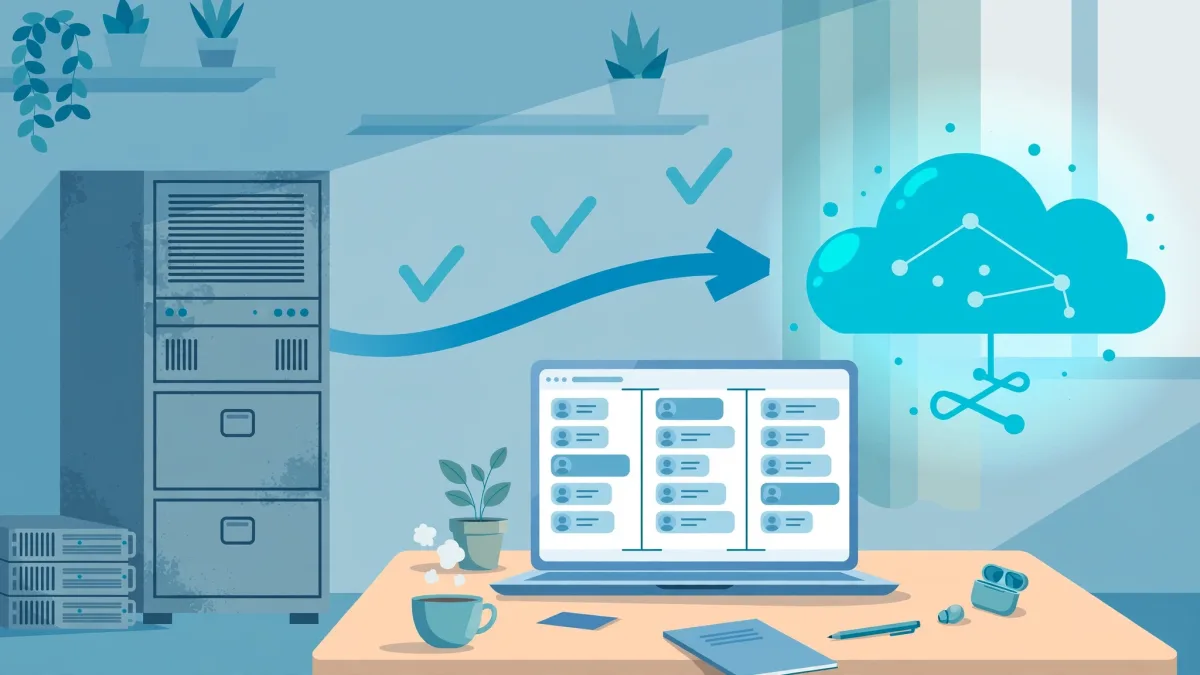
A CRM holds the memory of your business: every conversation, every quote, every deal that is still alive. So when you switch platforms, the stakes are higher than a simple file transfer. This CRM data migration checklist walks you through moving contacts, companies, deals, activities, and history from one CRM to another without losing a…
A CRM holds the memory of your business: every conversation, every quote, every deal that is still alive. So when you switch platforms, the stakes are higher than a simple file transfer. This CRM data migration checklist walks you through moving contacts, companies, deals, activities, and history from one CRM to another without losing a single lead, and without breaking the workflows your sales team depends on every day.
Migrations fail for predictable reasons. Records get dropped during export, fields land in the wrong place, duplicates multiply, and activity history quietly disappears. According to Gartner, poor data quality already costs organisations an average of $12.9 million per year, and a sloppy migration adds to that bill fast. The good news is that every one of these failure modes is preventable with a disciplined process. Work through the checklist below in order, and treat each phase as a gate: do not move on until the current phase is signed off.
Phase 1: Plan the Migration Before You Touch Any Data
Every clean migration starts with decisions, not exports.
Define scope and assign owners
Decide exactly what is moving. Typical CRM objects include contacts, companies or accounts, leads, deals or opportunities, activities, notes, emails, files and attachments, tasks, quotes, and custom objects. Just as important, decide what is NOT moving. Old, inactive records with no engagement in years can be archived instead of imported, which keeps your new CRM clean from day one. Assign a migration owner who is accountable for the whole project, plus a data owner from each department that uses the CRM.
Set a cut-off date and a freeze window
Pick a date after which old records stop being created in the source system, and a freeze window during which the legacy CRM becomes read-only. Any record created or changed during the transfer window must be captured by a later delta migration, a second, smaller transfer that picks up only what changed while the main migration was running. Agree the freeze window with the sales team in advance and choose a low-activity period.
Inventory everything connected to the CRM
List every tool connected to your current CRM: email marketing platforms, website forms, billing and invoicing tools, ERP systems, support desks, calendars, and any automation or workflow rules running inside the CRM itself. Integrations are one of the most common things migrations break, so each one needs a plan for reconnection and testing in the new system. If you are still weighing which platform to move to, our guide on how to choose CRM software for your business can help you compare options before the migration begins.
Phase 2: Clean Your Data in the Source CRM
Deduplicate records
Typical B2B CRMs carry a duplicate rate of 15 to 30 percent, according to migration practitioners. Define matching rules before you merge anything: an exact email match is usually safe, while a company name plus domain match or a phone plus last name match needs review. Be conservative. It is better to manually merge uncertain cases than to auto-merge two different people into one record and lose one of them.
Standardize formats and fill critical gaps
Normalize phone numbers, addresses, country names, date formats, and picklist values such as lead source and industry. A record with a missing email or phone number cannot be followed up, so fill the gaps that matter or flag the record for review. Standardization also matters because the new CRM may enforce stricter formats, and records that fail validation may be rejected at import, silently dropping leads.
Archive what you do not need
Archive closed deals older than your cut-off, dead leads with no activity, and test records created during training or demos. A common rule is to migrate active accounts, current contacts, open and recent opportunities, and enough activity history for context, while archiving anything older than three to five years.
Phase 3: Build the Field Mapping Document
The field mapping document is the single most important artifact of the migration. It lists every source field, its target field in the new CRM, and the transformation rule that converts one to the other. Every field needs a row. If a field is not in the document, it will not survive the move.
| Source field (old CRM) | Target field (new CRM) | Transformation rule |
|---|---|---|
| Lead Source (free text) | Lead Source (picklist) | Map free-text values to approved picklist values; unmatched values go to "Other" for manual review |
| Phone (mixed formats) | Phone (E.164 format) | Strip spaces and dashes, add country code, validate before import |
| Deal Stage (5 stages) | Pipeline Stage (6 stages) | Map each old stage to the closest new stage; document the one stage that splits in two |
| Owner (username) | Owner (user ID) | Translate old usernames to new user IDs using the user mapping table |
| Legacy Record ID | Legacy ID (custom field) | Carry over for audit trail and to reconnect records after import |
Map relationships, not just fields
A contact without its company, and a deal without its contact, is a record stripped of its context. Your mapping must cover relationships: which contacts belong to which companies, which deals belong to which contacts, and which activities belong to which records. Carry the legacy record ID into a custom field in the new CRM so you can trace every imported record back to its source and reconnect anything that lands out of order.
Plan for history and attachments
Behavioral and engagement history is the data teams lose without realizing it. Email open and click history, meeting logs, call notes, and file attachments live in different structures in every CRM, and they rarely migrate cleanly. Decide explicitly what happens to each type of history: full migration, summary migration, or archive. A contact record with no timeline may look complete but gives your sales rep no context for the next call. Our article on lead management and sales automation explains why that follow-up context is exactly what keeps leads from going cold.
Phase 4: The CRM Data Migration Checklist for Test Migrations
Never run a production migration that has not already succeeded in a sandbox. A test migration uses a representative sample, typically 5 to 10 percent of your records, and proves the mapping works before real data is at stake.
- Set up the sandbox. Configure the new CRM with the custom fields, picklists, pipelines, and user roles your mapping document requires, before any import.
- Disable automations and outbound email. Turn off workflow rules, notifications, and email deliverability in the sandbox so a test import does not spam your customers or trigger live workflows.
- Import the sample. Run the test migration with a representative slice of data that includes edge cases: records with long notes, special characters, multiple contacts per company, and deals in every pipeline stage.
- Reconcile record counts. Compare the number of records per object in the source against the number imported. Any gap needs an explanation before you proceed.
- Spot-check field by field. Review 50 to 100 records per object and verify values, relationships, ownership, and attachments. Check that deals still sit in the right pipeline stage and that activities are attached to the right records.
- Test workflows and integrations. Fire the automations, submit a test form, and confirm data flows to connected tools correctly.
- Fix, then repeat. Run a second pilot after fixes, and get written sign-off from stakeholders on the pilot results.
Phase 5: Back Up Everything and Prepare Rollback
Before the production run, export a full backup of the source CRM and store it securely. This is your safety net. If anything goes wrong during the migration, even small things, this export lets you recover. A migration with no pre-migration backup risks unrecoverable data loss, and no amount of post-migration effort can recreate records that were never backed up.
A rollback plan answers three questions in advance: what triggers a rollback, who decides, and how long does it take to restore the old system? Define rollback triggers as measurable thresholds, for example, more than 2 percent of records failing to import or a broken integration with your billing tool. Keep the legacy CRM available in read-only mode for at least two weeks after go-live.
Phase 6: Execute the CRM Data Migration Checklist in Production
Migration day is execution, not experimentation. Every decision should already be made, and the team should be following the runbook built during the test migrations.
- Confirm the backup. Verify the source export is complete and accessible before anything else happens.
- Freeze the source system. Set the legacy CRM to read-only so no one edits records mid-transfer.
- Import in the correct object sequence. Load parent records before child records: companies before contacts, contacts before deals, deals before activities. Importing in the wrong order breaks relationships.
- Monitor import logs in real time. Watch for rejected records, validation errors, and rate limits. Log every failure with its reason so nothing is silently dropped.
- Run the delta migration. Capture records created or changed during the migration window and reconcile the delta counts against the source.
- Validate before announcing go-live. Repeat the count reconciliation and spot checks from the test phase against the full production data set.
Phase 7: Validate, Train, and Stabilize After Go-Live
Run post-migration validation
Reconcile record counts by object type, source versus new CRM. Sample records field by field. Test every automation end to end, run integration smoke tests in production, and log in as each role type to confirm permissions and data security settings behave as expected. Confirm reports and dashboards show the figures the business expects.
How Long Does a CRM Data Migration Take?
Timeline depends almost entirely on data quality and complexity. A small business moving clean data from a single CRM can complete a migration in one to two weeks. Mid-market businesses with messy data across multiple sources typically need four to eight weeks, and the cleansing phase is usually the longest and the most underestimated. Complex migrations involving multiple source systems, custom objects, and hundreds of workflows can take several months. Build a 15 to 20 percent contingency buffer into the budget and timeline from the start.
For most teams, a phased migration is the safer choice. A big-bang migration moves everything at once and finishes faster, but it carries higher risk, longer downtime, and no easy rollback. A phased migration moves data in stages, keeps both systems running in parallel, and lets you roll back a single stage if something goes wrong.
FAQ
What is the first step in a CRM data migration?
Start with scope and inventory. List every object, field, relationship, attachment, automation, report, and connected system in your current CRM, decide what is moving and what will be archived, and assign a migration owner.
How do I make sure no leads are lost during migration?
Use three controls: a record-count baseline per object taken before the transfer, a test migration in a sandbox that proves the mapping works, and a post-migration reconciliation that compares counts and samples records field by field. Carry the legacy record ID into the new CRM so every record can be traced, and keep the old CRM in read-only mode for at least two weeks as a fallback.
Should I clean my CRM data before or after migration?
Before, always. Deduplicate, standardize formats, and archive dead records in the source system first. Cleaning after import is slower and riskier, because bad data has already spread into reports, automations, and integrations in the new CRM.
What is a delta migration?
A delta migration is a second, smaller transfer that captures records created or changed during the migration window while the main transfer was running. Without it, any lead added or updated during cutover would be missing from the new CRM. Always reconcile delta counts against the source before announcing go-live.
How long should I keep the old CRM after migration?
Keep it in read-only mode for a minimum of two weeks, and longer if validation is still open. Decommission it only after the hypercare period closes, validation is signed off, and your backup is safely stored. Deleting the old system early removes your only fallback.
Do I need a specialist to migrate my CRM?
Small migrations with clean data can be handled in-house if you follow this checklist rigorously. Larger migrations, with multiple source systems, heavy customization, or integrations to billing and ERP tools, benefit from specialist help. If you would like expert support, explore our CRM and sales solutions, which cover CRM implementation, data migration, and business process automation so your workflows run cleanly on the new platform from day one.
A CRM migration is a data project, a process project, and a people project at the same time. Follow this checklist phase by phase, prove each step in a sandbox before you trust it in production, and keep your backup and rollback plan ready until the new system has earned your trust. Done this way, your team gets a clean CRM, your reporting stays honest, and not a single lead gets left behind. If you are planning a move and want it handled end to end, contact our team and we will plan your migration with you, from the first audit to the final validation.
Related Articles
Keep reading — more guides you may find useful.


Related Services
Services connected to this guide.